Apple HomePod Mini Volume Buttons Blinking Fix: Professional Repair Guide
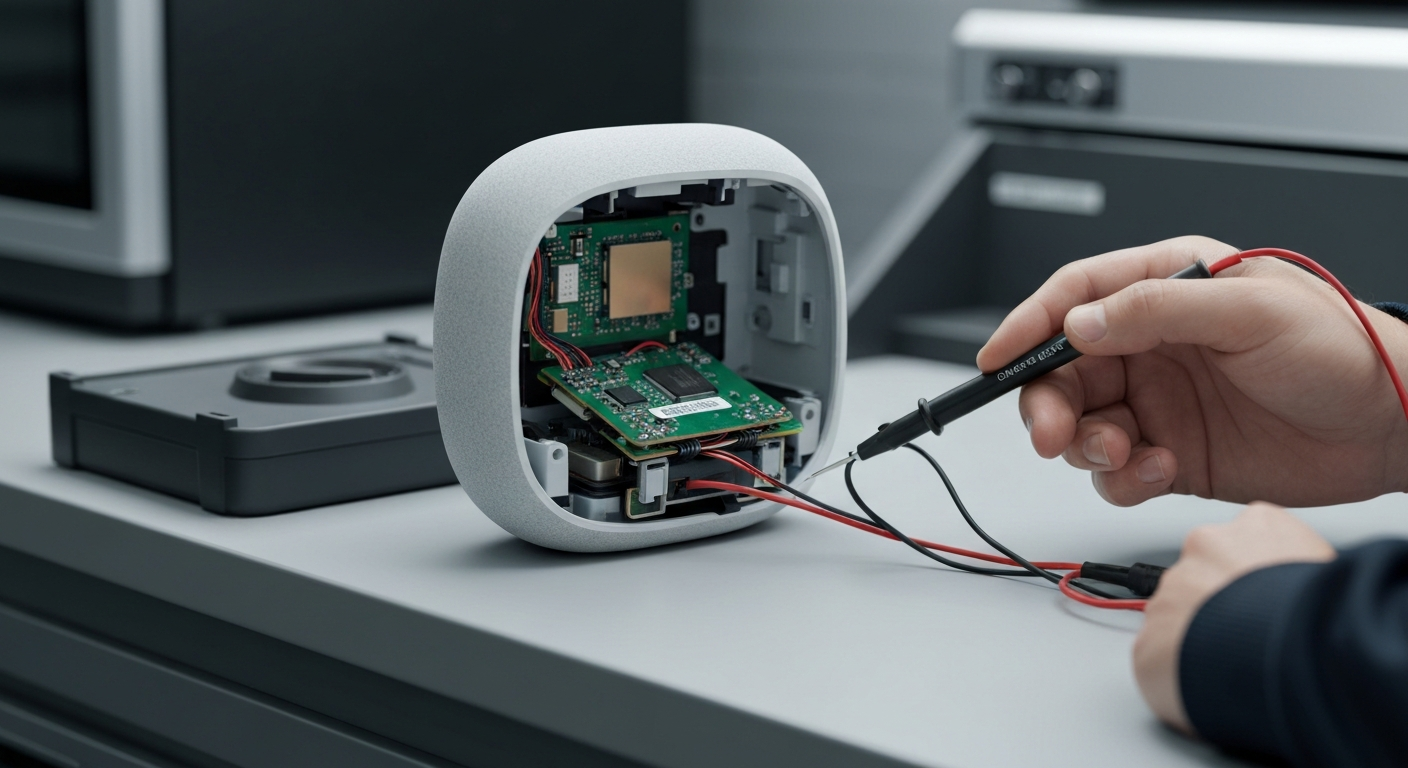
The Apple HomePod Mini Volume Buttons Blinking error is caused by either a corrupted firmware update or a critical hardware failure between the logic board and the NAND flash memory. This specific visual signal indicates that the device is stuck in a boot loop or cannot communicate with its internal storage. Understanding the root cause is essential for a successful Apple HomePod Mini Volume Buttons Blinking Fix.
Software glitches often occur during an interrupted OS update, leaving the system in an unstable state. If the internal software cannot load, the volume buttons will flash as a distress signal to the user. This is the most common scenario and can usually be resolved through a series of reset procedures.
However, if the issue persists after a full reset, the problem is likely hardware-related. The physical connection between the logic board and the flash memory can degrade over time or due to heat. In such cases, the device requires professional micro-soldering or a full unit replacement from Apple.
Step-by-Step Apple HomePod Mini Volume Buttons Blinking Fix
Before attempting any hardware disassembly, follow these structured steps to rule out software issues. Most users find success by performing a deep power cycle or a forced factory reset. If you have recently encountered other issues, you might want to check our Apple HomePod error 3015 repair guide for similar software-related troubleshooting.
| Step | Action | Tools Needed |
|---|---|---|
| 1 | Unplug the HomePod Mini and leave it disconnected for at least 24 hours to drain residual capacitance. | None |
| 2 | Plug it back in, press and hold the top touch surface for 10 seconds until the spinning light turns red. | None |
| 3 | Connect the device to a Mac via USB-C and use Apple Configurator or Finder to restore the firmware. | Mac & USB-C Cable |
| 4 | If the restore fails with an error code, visit an Apple Authorized Service Provider for hardware diagnostics. | Professional Support |
The 24-hour power cycle is a critical first step that many users overlook. This allows the internal volatile memory to completely clear, which can sometimes bypass a minor boot loop. If the light never turns red during the reset process, the touch digitizer may also be failing.
For those who find the Mac restoration process difficult, ensure your macOS is updated to the latest version. You can find more details on resolving connection issues in our HomePod update error 69224 fix article. Firmware restoration is the final software-based attempt before concluding the hardware is defective.
Recommended Replacement Parts and Tools
Disclaimer: This section contains affiliate links. We may earn a commission at no extra cost to you.
If your device is out of warranty and you have experience with electronics, you may need specific tools for inspection. We recommend high-quality USB-C data cables for the restoration process to ensure stable data transfer. Using a low-quality cable can often lead to failed firmware installations.
For advanced technicians, a specialized opening tool kit is necessary to access the internal logic board. However, we strongly advise against opening the HomePod Mini unless you are trained in micro-electronics. The internal components are densely packed and easily damaged by static or improper handling.
FAQ
Why are my HomePod Mini volume buttons blinking?
The blinking lights indicate that the device has failed its self-diagnostic test during startup. This is usually due to a corrupted operating system or a physical failure of the internal NAND storage chip.
Can I fix a hardware-related blinking light at home?
Hardware fixes for the HomePod Mini are extremely difficult because the device is not designed to be user-serviceable. If the firmware restore fails, the logic board likely needs professional repair or replacement.
How do I know if my HomePod Mini is officially dead?
If you have tried the 24-hour power cycle, the red-light factory reset, and the Mac firmware restore without success, the device has a permanent hardware failure. At this point, contact Apple Support for replacement options.