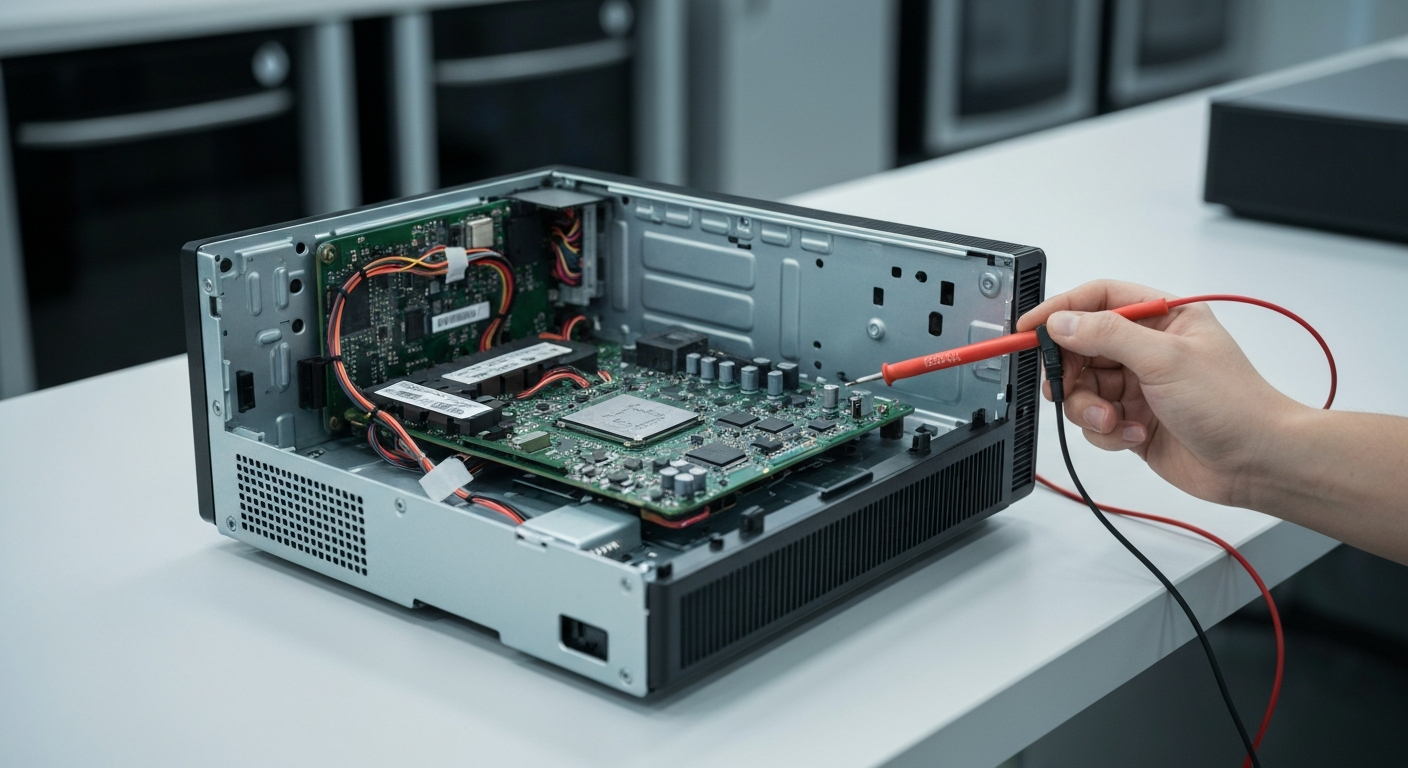
The Xbox Series X Error E102 System Update Fix is caused by corrupted operating system files or critical installation failures during the update process. This error typically occurs when the console’s software becomes desynchronized due to network instability or physical bad sectors on the internal SSD. Understanding the root cause is essential for choosing between a software reset or a hardware replacement.
If you encounter this screen, it means the console cannot boot into the dashboard successfully. While it may seem like a total system failure, most cases can be resolved through the built-in recovery environment. Following a structured troubleshooting path will help you identify if the issue is a temporary glitch or a permanent hardware fault.
Understanding the Xbox Series X Error E102 System Update Fix
The difficulty level for this repair is medium-high because it involves navigating hidden system menus. If the software-based solutions do not work, you may need to open the console for hardware diagnostics. Always ensure your data is backed up to the cloud before attempting a full factory reset.
Before proceeding with advanced steps, you might want to check our Xbox Series X Error E101 repair guide for similar startup issues. Many of these system errors share common root causes related to the update partition.
Step-by-Step Repair Guide
To resolve the Xbox Series X Error E102 System Update Fix, follow the sequence of actions outlined in the table below. This progression moves from the least invasive to the most technical solutions.
| Step | Action | Tools Needed |
|---|---|---|
| 1 | Full Power Cycle: Unplug the power cord for 60 seconds to clear the cache. | None |
| 2 | Access Troubleshooter: Hold Bind and Eject, then press Power until two beeps sound. | Console Buttons |
| 3 | System Reset: Select “Reset this Xbox” and choose “Keep my games & apps” first. | Controller |
| 4 | Offline Update (OSU): Use a USB drive to manually install the latest OS version. | USB Drive (NTFS) |
| 5 | Hardware Check: Replace the internal NVMe SSD if the update fails repeatedly. | T8/T10 Screwdriver |
If the Offline System Update (OSU) option is greyed out or fails at 1%, it is a strong indicator of hardware failure. In such cases, the internal storage drive has likely reached its end-of-life or suffered physical damage. You can also refer to our Xbox Series X Error E105 system update fix for more details on storage-related errors.
Recommended Replacement Parts
Disclaimer: This section contains affiliate links. We may earn a commission at no extra cost to you.
When software fixes fail, replacing the internal SSD is the only way to resolve a persistent E102 error. Ensure you purchase a compatible NVMe SSD that matches the original specifications of the Xbox Series X. Using high-quality tools will also prevent stripping the security screws during the disassembly process.
We recommend using a specialized electronics repair kit for this task. A high-speed USB 3.0 drive with at least 6GB of space is also required for the Offline System Update. These components are vital for a successful hardware-level recovery.
FAQ
What is the main cause of the E102 error?
The E102 error is primarily caused by corrupted system files during an update or a failing internal SSD. It prevents the console from loading the operating system correctly, resulting in a startup loop.
Will a factory reset delete all my games?
You can choose the “Reset but keep my games & apps” option in the Troubleshooter menu. This will refresh the OS files while leaving your installed game data intact on the drive.
What should I do if the Offline System Update (OSU) fails?
If the OSU process fails repeatedly, the internal SSD is likely physically damaged. You will need to replace the internal storage drive and perform a fresh system installation using a recovery image.